How to verify your business on Google without getting stuck on the video
Prepare the right evidence to verify your Google Business Profile by phone, email, live call, postcard, or video recording.
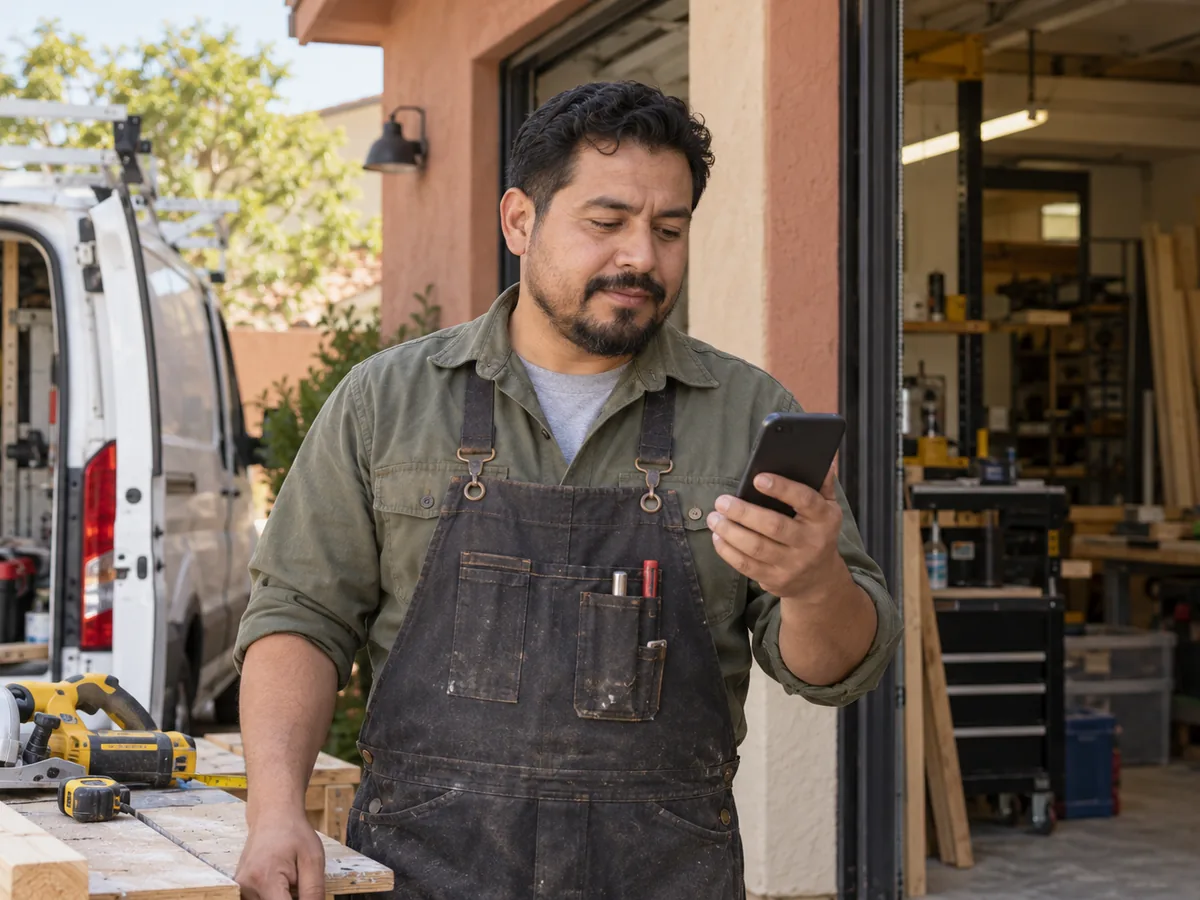
You created your Google Business Profile, filled in the name, phone number, and services, but the Get verified button is still there. Until you finish that step, you do not have full control over how the business appears or normal access to features such as replying to reviews.
Verification is not a test of how well you know Google. It is a way to prove three things: the business is where you say it is, it genuinely operates, and you are authorized to manage it.
When you prepare that evidence before you start, the process feels much less like an improvised exam. This guide explains which method to use, what to show in a video, and which mistakes commonly force business owners to try again.
Before verification, make sure the profile is accurate
Do not start recording while the information is still temporary. Compare the profile with the way the business exists offline.
Check these details:
- The name should match the storefront, vehicle, invoices, and website. Do not add cities, services, or promotional phrases just to appear in more searches.
- The primary category should describe the main activity of the business.
- The address should be real and precise if customers visit you there.
- If you travel to customers and do not serve them at your address, set up a service-area business and hide that address.
- The phone number and website should belong to the business and be active.
- The hours should match the real operation.
Google asks businesses to represent themselves consistently with their signage, documents, and real-world presence. A difference between the profile and the evidence can create questions during review. Read the official guidelines for representing a business before you submit verification.
Search for the business before creating a new profile
You may find a listing that a customer, former employee, or Google already added. Creating another one without checking can produce a duplicate and complicate ownership.
Sign in with the account you plan to use for the business, then search for the business name and city. You can also search for my business on Google. If the profile exists and does not have a confirmed owner, use the option to claim it. If another authorized person already verified it, request access instead of creating a second listing.
If it does not exist, you can add it through Google. Adding or claiming a profile is free. The official guide to adding or claiming a business explains both paths.
You cannot choose any verification method you want
Google automatically decides which options to show based on the business type, public information, region, and other profile details. You may see phone, text message, email, postcard, live video call, or video recording. In some cases, more than one method is required.
Another company receiving a code by text does not mean your business will get the same option. You also should not change profile details simply to make a different method appear. Use the choices shown on your own profile.
Phone, text message, or email
If one of these choices appears, first confirm that you have direct access to the listed number or email address. Automated phone systems may not be able to receive the code.
Enter the code only inside your Business Profile. Do not share it with an agency, a caller, or anyone who promises to verify the listing for you. Google says it will never ask you for that code.
Postcard
Postcard verification is not available to every business. If it appears and you choose it, check the mailing address before requesting the code. While you wait, do not change the business name, address, or category, and do not request another code without a reason. A new request invalidates the previous code.
Google says most postcard codes arrive within 14 days and expire after 30 days. If the deadline passes, follow the instructions on the profile instead of trying an old code.
Live video call
During a live video call, a representative will ask you to show the location, the business or equipment, and proof that you manage it. You need to be at the location during its stated business hours and use a device that lets you walk through the space.
Have your keys, access to work areas, and evidence ready. Do not depend on searching for documents after the call has started.
Video verification proves three things
For many local businesses, the available option will be a recording. The video needs to connect three kinds of evidence in one continuous take:
- Location: street signs, a building number, nearby businesses, or recognizable landmarks.
- Business existence: a storefront, permanent sign, tools, equipment, products, or workspace.
- Authority to manage it: access with a key, a cash register, storage room, point-of-sale system, work vehicle, or appropriate business documents.
A storefront photo proves only the place. A close-up of a tool proves only that a tool exists. The complete walk-through should make it clear why the place, operation, and your access all belong to the same business.
How to record a storefront or customer-facing location
Start outside. Show a street sign, the building number, or a recognizable neighboring business. Then turn toward the storefront and make the permanent business name visible. That name must match the profile.
Walk inside without stopping the recording. Show the customer area, products, or equipment connected to the service. Finish by proving access to something a regular visitor does not control, such as unlocking the location, entering storage, opening the register, or using the point-of-sale system.
A simple route could be:
- Street sign and building number.
- Storefront and permanent sign.
- Entrance to the location.
- Service area or equipment.
- Access to an employee-only space or system.
You do not need a long narration. The images should make the connection between each piece of evidence understandable.
How to record a service-area business
A plumber, electrician, HVAC technician, or cleaning company may work from home or from a space that is not open to the public. Do not invent a storefront or present the address as a place customers can visit.
Start with signs or recognizable landmarks near the address where the business operates. Then show professional tools, materials, uniforms, business cards, or the space where you prepare for jobs. Finish by proving that you manage the business resources.
For example, you can show:
- Yourself unlocking a work van identified with the business.
- Tools and equipment that match the services listed on the profile.
- A permit, invoice, or utility bill with the business name, while covering sensitive numbers.
- Access to the area where you store materials or coordinate jobs.
Google allows service-area businesses to verify without a storefront open to customers. The important part is representing the model accurately and connecting the operating location with the equipment and your authority.
Plan the route before you press Record
The official video verification guide requires one unique, complete recording with no edits or breaks that lasts at least 30 seconds. You must record it live and upload it from a mobile device through your profile. You cannot record it earlier and upload it later from your camera roll.
Do a practice walk-through without recording:
- Decide where you will start and finish.
- Open doors and turn on lights so you do not have to pause.
- Keep keys and tools within reach.
- Check your connection and battery.
- Clean the camera lens.
- Keep customers, employees, and neighbors out of the frame.
- Cover private details on documents before showing them.
The video must not include other people's faces or sensitive information such as bank, tax, or identification numbers. If you need a document, show only enough to connect it to the business.
Mistakes that make a video fall short
Most problems come from incomplete evidence, not camera quality.
Avoid these mistakes:
- Recording only the sign.
- Starting inside without showing where the location is.
- Showing generic tools with no visible connection to the profile.
- Failing to prove access or authority over the business.
- Recording an empty lot or street with no clear markers.
- Showing a different name from the one on the profile.
- Cutting, editing, or combining several clips.
- Using a previously recorded video.
- Including faces or documents with sensitive details.
- Listing an address as a storefront when customers are not served there.
The production does not need to be perfect. A steady, continuous, clear video is more useful than a polished edit that does not follow the process.
What happens after you submit it
Google says review can take up to five business days and, in rare cases, longer. Avoid making major profile changes while you wait unless Google requests them.
If verification succeeds, you will receive confirmation. If you see Review issues, read the reason before you record again. The new video should repeat the valid evidence from the first attempt and add what was missing. Do not record only the missing part because the new take still needs to be complete.
If the Get verified button appears again, Google could not fully confirm the profile or needs reverification. Follow the choices shown on the listing. Recent changes to important business details can also trigger a new verification request.
Do not pay for a guaranteed verification promise
No agency can guarantee that Google will approve a profile or create a verification method that does not appear in your account. A legitimate provider can help review the information, plan the walk-through, and organize documents, but the evidence must belong to a real business.
Do not give codes, passwords, or primary ownership to a stranger. After verification, you can add authorized owners or managers through the profile settings without sharing your personal login.
Final checklist before you begin
Confirm these points:
- The name, category, address or service area, and hours are correct.
- There is no existing profile you should claim.
- You are signed in to the right Google Account.
- You will use one of the methods Google shows on the profile.
- The walk-through proves location, existence, and management.
- The visible business name matches the profile.
- The tools and documents belong to the business.
- No other people's faces or sensitive details will appear.
- The phone has enough battery, a connection, and camera, microphone, and location permissions.
- You can complete the recording without cuts.
Verification does not improve the service by itself or guarantee a ranking on Google. It does let you control information that a customer uses to decide whether to call, visit, or request an estimate.
Prepare the evidence as you would prepare for a service visit: confirm the address, gather the tools, and make sure you can show that you are in charge. If you also need Google, your website, and your contact channels to tell the same story, Arraigo Digital can help you organize your business's digital presence.